So you're buying a new computer for Architecture School
Wait as long as possible, and buy as much as you can afford.
Maybe it’s my age or maybe my general nerdy demeanour, but every year I get asked the same question: which computer should I buy? Each time I try to resist recommending the computer every architecture student should buy, because that’s not really the point of this article. So if you’re just looking for a BUY NOW button, this is going to be a frustrating read.
What I do say, every time, is the same thing: wait as long as possible, and buy as much as you can afford. Which sounds bad and expensive, I know. Let me lay out what that actually means, and try my hardest to help you work out what might suit you.
Up-front disclosure: I’m a Mac guy. That’s definitely not the status quo for nerdy architecture folks, and it doesn’t get you much love on the Revit forums.[1] I’ll come back to that.
The specs, decoded
Alphabet soup
Before we get anywhere near what to buy, you have to confront the alphabet soup. Every piece of software you’re going to touch has a system requirements page, and they all use the same handful of acronyms. CPU, GPU, RAM, VRAM, SSD, GHz. Here’s what a handful of the tools you’ll actually run look like, pulled straight from the vendors’ own pages.
| Software | What it's for | RAM (rec.) | GPU / VRAM (rec.) | Storage |
|---|---|---|---|---|
| Revit 2026 | BIM / documentation | 32 GB for medium models, 64 GB for large | DirectX 11, 4 GB VRAM min, 6 GB+ for Accelerated Graphics | 30 GB install, 100 GB free |
| Archicad 28 | BIM / documentation | 32 GB+ for high-end projects | OpenGL 4.0, 6 GB+ VRAM | NVMe SSD recommended |
| Rhino 8 | 3D modelling | 16 GB min, 32–64 GB for demanding work | Dedicated GPU; Apple Silicon natively supported | 10 GB |
| Twinmotion 2025 | Real-time rendering | 16 GB min, 64 GB recommended | 6 GB VRAM min, 12 GB+ recommended | 30 GB |
| Photoshop 2026 | Image editing | 8 GB min, 16 GB+ recommended | 1.5 GB VRAM, 4 GB+ for 4K | 20 GB, SSD recommended |
| Stable Diffusion (local) | AI image generation | 16–32 GB | 8 GB VRAM for SDXL, 12 GB+ for FLUX | 20–50 GB for models |
A few things should jump out. Rendering and AI tools want a lot more VRAM than the modelling tools do. Revit and Archicad both tell you 32 GB of RAM is where you actually start being productive, not the 16 GB their minimums list. And “minimum” is doing a lot of heavy lifting — it’s what’s needed to open the software, not to do real work in it.
What you’re actually paying for
A laptop or desktop is basically four things doing work together.
The processor (CPU) is the brain. It handles everything that isn’t specifically a drawing or a render — opening files, running your operating system, crunching through a spreadsheet or a script. For most architecture work it matters, but it’s rarely the thing that bottlenecks you first.
The RAM is short-term memory. It’s what lets you have Rhino, Illustrator, a browser with 40 tabs, and Spotify all open without the whole thing falling over. 16 GB is the realistic minimum now. 32 GB is where you want to be if you can.
The GPU is what draws things on screen and does the heavy lifting for 3D viewports, rendering, and anything visual. VRAM is the GPU’s own dedicated memory, and that’s the number that actually matters for architecture work. This is where students feel the difference between a cheap laptop and a good one. Spend here.
Storage (SSD) is where your files live. Get more than you think you need. Architecture files are fat, libraries are fat, and running out of space mid-semester is genuinely miserable. Spend here too.
If I’m ranking where your money goes: GPU and storage first, RAM second, CPU last. The CPU on almost any modern machine is already fine. The GPU and storage are where cheaping out will hurt you for three or four years.
What to buy
The rule of thumb
Budget-wise, aim for around $2,000. I know that’s a lot. But a $2,000 machine bought well will get you through a five-year degree and into early practice without needing to be replaced, and that maths works out much better than buying a $1,200 laptop that starts choking in second year. Again, this is doubling down on an ethos of buy nice or buy twice — or if you spend too little now you might end up needing to replace your machine more often. This is related to wait as long as possible and spend as much as you can afford.
If that number’s out of reach, the second-hand market is genuinely good right now. A three-year-old machine that was high-spec when it was new will outperform a brand-new budget machine, and you’ll pay half.
Laptop, desktop, or both?
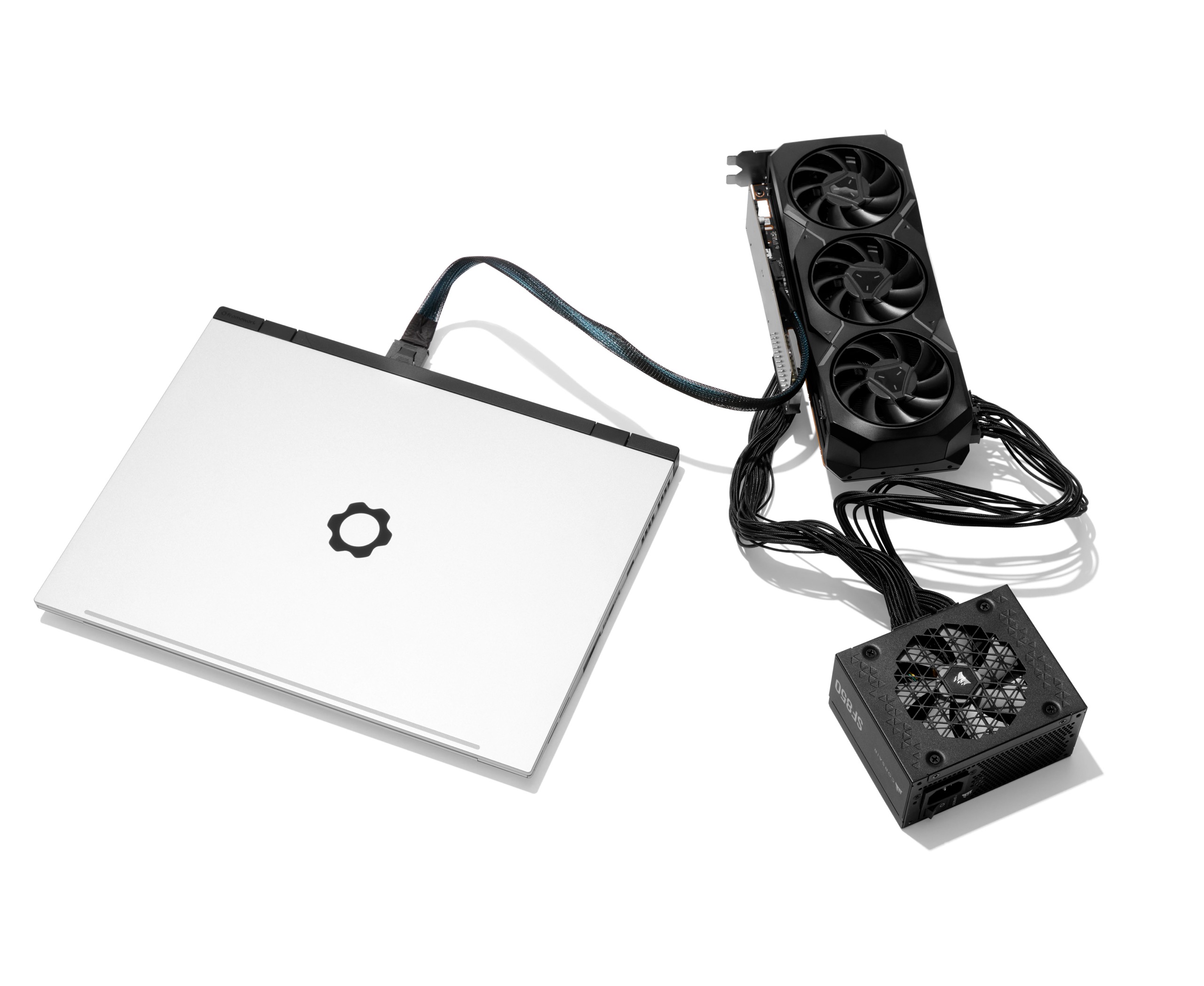
Most students are going to buy a laptop, and that’s fair. You want to take your work to studio, to a cafe, to your kitchen table. But I think a lot of students should at least consider spending a bit less on a laptop and building a desktop at home.
Desktops are always going to be better bang-for-buck. Always. Same money gets you roughly twice the performance, and you can upgrade bits of it later instead of replacing the whole thing. Building one isn’t scary — there are genuinely good guides online, and it’s mostly just plugging things into obvious slots. Pair a modest laptop for studio with a proper desktop at home and you’ve got the best of both.
Now, gaming laptops. They get a bad reputation in architecture circles that I think is only partly deserved. For a student who needs real GPU performance and mostly works plugged in at a desk — in studio, at home — a gaming laptop is a completely legitimate choice, and often better value than a “creator” equivalent with the same internals. The caveats are real though: they run hot under load, and the battery life under GPU-heavy work is genuinely poor — 2–3 hours when pushed. For normal studio work (writing, modelling, light Photoshop) you’ll get more like 4–5 hours, which is workable but not comfortable. The weight is the thing I’d think hardest about. A gaming laptop is typically 2.3–3.0 kg. That’s a meaningful daily burden over five years of carrying it to studio, to crits, to site visits, to the library. That calculation is personal — some people don’t care, some find it miserable — but make it consciously.
Something worth saying here: hardware is genuinely good now. Renders don’t require a cutting-edge beast of a machine the way they did five years ago. A mid-range modern GPU will handle Enscape, Twinmotion, and most of what you’ll throw at it in undergrad. You don’t need to spec for the absolute worst case.
Think about how you’ll actually use it
This is the bit I really want you to consider. Don’t just think about how you’ll use this machine as a student or for this semester’s subject but try to think about how you’ll use it as a young professional in two or three years.
Do you want to work in a coffee shop without hunting for a powerpoint? Do you want to take it to a site visit? Do you want to do everything plugged in at a desk at home and in studio, and nothing else? These are different machines.
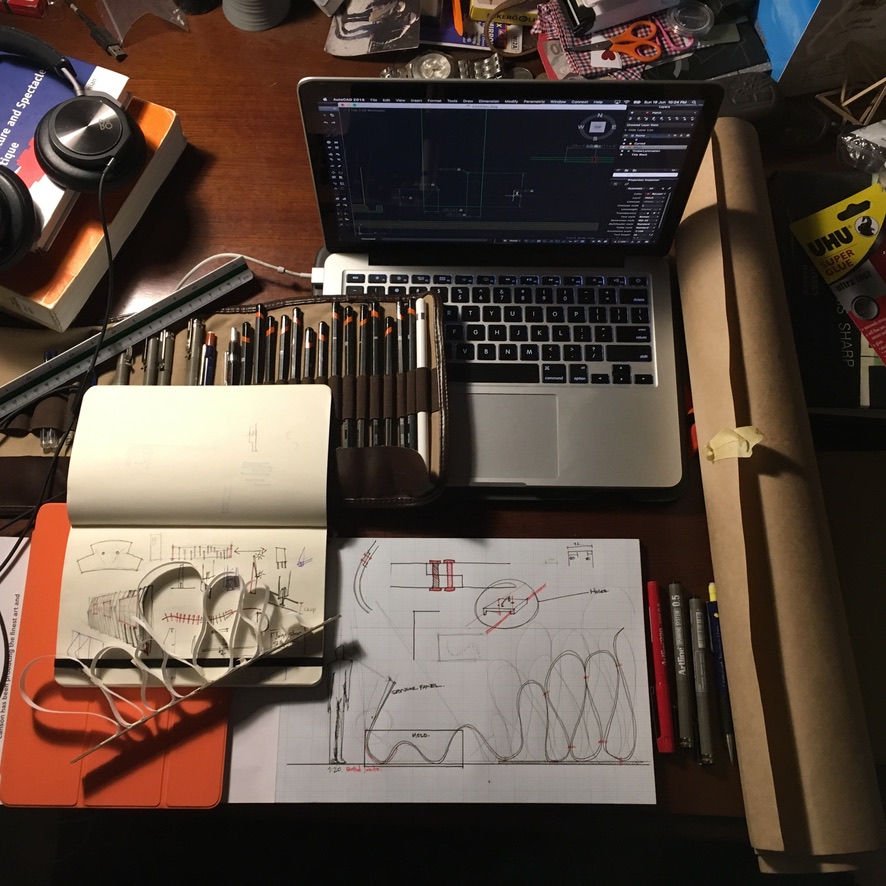
For me: I’ve used a MacBook Air with an M-series chip for the last three or four years and it’s done pretty much everything I’ve wanted it to. Full working day on battery, silent, cool, light. It’s not a render farm and I don’t ask it to be one. For the way I actually work, the trade-off is a good one.
The uncomfortable Mac thing
The one uncomfortable opinion I’ll defend is that Macs genuinely give you that combination of power, long battery life, and portability that nothing else quite matches right now. The catch is that the software ecosystem in architecture is still Windows-first. Revit doesn’t run natively on Mac — though there’s a workable path around that, which I’ll come to.
It’s a weird time in computing generally. AI is changing what machines need to do, new chips are coming out constantly, and the gap between “cheap” and “expensive” laptops is shifting every few months. Which is another argument for waiting as long as you can before you buy.
Now, actually buying the thing. Five paths, depending on where you’re coming from.
Do nothing
In government, when a department needs to approve a spending decision, the first option on the table is always do nothing — not as the boring placeholder before the real options, but as a genuine choice that has to be actively ruled out before any money moves. The question isn’t which thing should we buy. It’s should we buy anything at all, and if so, why now?
This is the right way to think about a computer purchase. Doing nothing is not the same as being stuck. The money you haven’t spent is still yours. And while you are doing nothing, the machine you’d eventually buy gets faster, cheaper, or both. Waiting is the cheapest option on the table, which is exactly why “wait as long as possible” is the advice at the top of this article.
If you’ve got a laptop from the last three or four years with 16 GB of RAM and an SSD, you’re probably fine for first year. First year is mostly drawing, writing, sketching, a bit of modelling in Rhino or SketchUp, maybe some light Photoshop and InDesign. None of that needs a powerhouse. The moment to buy is when your current machine starts genuinely getting in the way — when Rhino models chug, when renders take overnight, when you can’t have Revit and a browser open at the same time. That’s the trigger. Not a week before semester one starts.
A few things that will extend the life of an older machine for basically no money: clear the junk — old apps, downloads folder, anything in the trash. If you’ve got a spinning hard drive, swap it for an SSD; it’s the single best upgrade you can make for under $150. Bump the RAM if the laptop lets you. Uninstall whatever bloatware shipped with it.
The university labs exist too. For the one or two moments in undergrad where you genuinely need a workstation — a big render before a crit, a massive Revit model — use them. CAD labs are also quietly one of the better places to learn: you end up sitting next to people in other years, looking over shoulders, asking questions you wouldn’t think to ask in class. You don’t need to own the solution to every problem you’ll encounter once.
Buying a laptop
If you’ve decided you want a laptop and you want it to be a PC, here’s roughly what to look for.
For the processor, anything in the current generation of Intel Core Ultra or AMD Ryzen will be fine. Single-core speed matters more for architecture software than core count does, so don’t get seduced by a spec sheet that lists 24 cores at a lower clock speed.
For RAM, 32 GB. Not 16. If you can only afford 16 at purchase, make sure it’s upgradeable later. Consider that a lot of modern laptops solder the RAM to the board and you’re stuck with what you bought.
For the GPU, this is where it gets expensive. You want a dedicated Nvidia RTX card with at least 8 GB of VRAM. An RTX 4060 or 4070 in a laptop will handle most of what an architecture student does.
The laptop GPU naming trap. Nvidia uses the same model names — RTX 4070, RTX 4080 — for both desktop and laptop GPUs, but they are not the same chip. A laptop RTX 4070 running at 60 W will perform closer to a desktop RTX 3060 than a desktop RTX 4070. Always check the wattage (TDP) of the GPU in the specific laptop you’re looking at — the same model name at 60 W versus 140 W is a completely different machine. Retailers rarely make this easy to find; look for it in the detailed spec sheet or a third-party review.
Storage: 1 TB SSD minimum. 512 GB fills up faster than you’d think once you’ve got a few big Revit models and a Twinmotion project or two. Again, this can be upgraded but means pulling your laptop apart and having a second machine to re-install windows.
Screen: aim for a 15 or 16-inch display with decent colour accuracy. You’ll be staring at it for thousands of hours. A bad screen is a tax on every piece of work you’ll ever do. External monitors look for things that say IPS or that kind of specification. The more accurate a screen you can get the better it will be for matching how you print!
Weight matters more than students expect. A gaming laptop is typically 2.3–3.0 kg. A thin-and-light workstation in the 1.4–1.8 kg range is a meaningfully different machine to carry every day for five years. It’s not exciting to think about, but it’s the thing you’ll notice most.
Check the ports. Architecture students connect a lot of things: drawing tablets (Wacom), external monitors, USB drives, SD cards. A laptop with two USB-C ports and nothing else is going to need a hub on day one. Look for at least one full-size USB-A port (just in case but rarely needed), a USB-C/Thunderbolt port that supports DisplayPort for an external monitor, and ideally an SD card slot. Gaming laptops tend to be better here than “creator” ultrabooks, ironically.
Brands I’d look at: Lenovo Legion and ThinkPad P-series, ASUS ProArt, Dell XPS, HP ZBook. The gaming laptops from those same brands are often better value than the “creator” versions despite having the same internals — the “creator” label tends to add a price premium for a nicer lid. Check for student discounts at the manufacturer’s education store before buying anywhere else; Lenovo, Dell, and HP all offer 10–20% off for students.
One Windows option worth considering separately is the Microsoft Surface line — the Surface Pro in particular. It’s not a powerhouse (the GPU is integrated, not dedicated), but it’s worth knowing about for a specific kind of student. The Surface Pro is essentially a tablet with a kickstand and a detachable keyboard, and the pen input is excellent — genuinely useful for sketching, annotating drawings, and reviewing work in a way that a standard laptop isn’t. The Surface Laptop 7 is a more conventional thin-and-light, competitive with the MacBook Air on portability and build quality. The catch: newer Surface devices use Qualcomm’s Snapdragon X Elite chip, which runs Windows on ARM. Compatibility with architecture software is improving but still inconsistent — Rhino and most Adobe apps run fine, but check specifically for anything your school requires before committing. The Intel-based Surface Pro models avoid this issue but are less efficient on battery. If you’re thinking Surface, it fits best as a companion to a desktop at home, or for a student whose work is lighter on rendering and heavier on sketching and presentation.
Buying a Desktop PC
If you’ve decided a desktop is right for you and you don’t want to build it yourself, pre-built desktops are a genuinely good option, and they’ve gotten much better in the last few years.
Same money gets you more performance than a laptop. You’ll also get a real keyboard and a real monitor, which you’ll appreciate within about a week. The trade-off is it lives on your desk and doesn’t come to studio.
For a pre-built at the $2,000 mark you should be looking at a Ryzen 7 or Core Ultra 7 CPU, 32 GB of RAM, an RTX 4070 or 4070 Ti, and a 1 TB NVMe SSD. If the machine you’re looking at has less than that at that price, keep looking.
Places to buy in Australia: Scorptec, PLE, Centrecom, Mwave all sell pre-builts and will let you tweak the spec. Avoid the big-box retailers’ (like Harvey Norman) own-brand gaming desktops; they tend to cheap out on the power supply and the motherboard, which are the two things you can’t easily upgrade later.
One thing to watch: a lot of pre-builts ship with a great GPU and CPU in a case with terrible airflow and a weak power supply. Ask what the PSU wattage is and what brand it is. If they won’t tell you, that’s a bad sign.
Building a Desktop PC
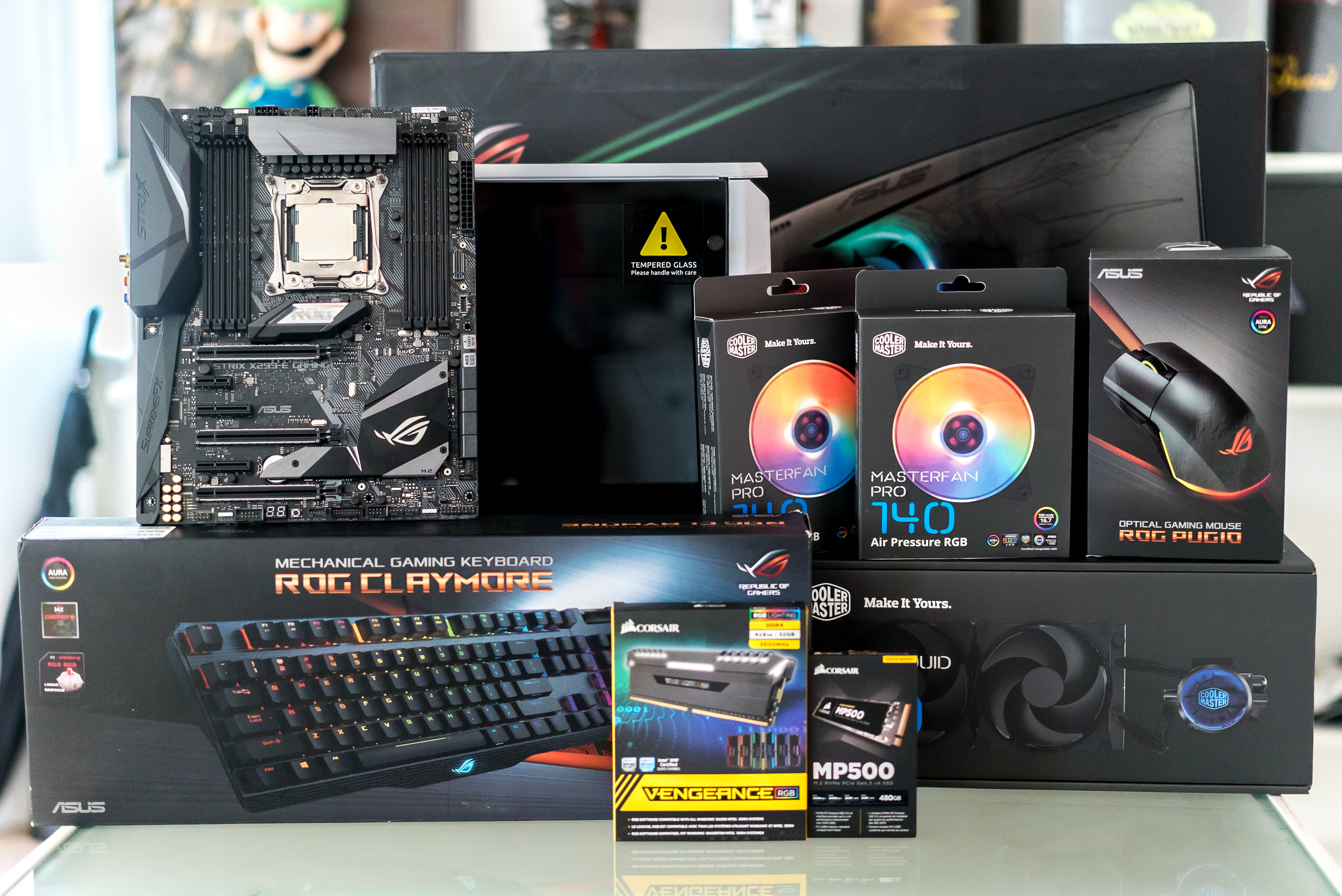
This is where the best value is, and I’ll die on that hill. Building a PC is not hard. It is, genuinely, mostly plugging large obvious plugs into large obvious sockets. If you can assemble IKEA furniture, you can build a PC. Especially with the resources that people like Linus Tech Tips have put out on YouTube.
The advantages are real. You pick every part, you know exactly what’s in it, you can upgrade any piece of it later without replacing the whole machine, and you save roughly 20–30% over an equivalent pre-built. You also learn something useful along the way.
For a $2,000–2,200 build aimed at architecture in 2026, roughly:
- CPU AMD Ryzen 7 9700X or Intel Core Ultra 7
- GPU Nvidia RTX 4070 Super — the 5070 is excellent but pushes the budget; the 4070 Super handles everything an architecture student does and is better value right now
- RAM 32 GB DDR5
- Storage 1 TB NVMe SSD for OS + active projects, 2 TB SSD or HDD for archive
- Motherboard mid-range board to match your CPU socket
- PSU 750 W, 80+ Gold rated — Corsair, Seasonic, or be quiet!
- Case anything with decent airflow; buy for ventilation, AND looks (you want to have a sweet rig)
PC Part Picker will check all your parts are compatible before you buy. Use it. There are hundreds of YouTube build guides; watch two or three and you’ll know what you’re doing. First build takes maybe three hours. Second build takes one.
The catch: you still need a laptop for studio. Factor that in. A $1,400 build at home plus a $1,000 laptop for carrying around will beat a $2,000 laptop on GPU performance every single time — but it’s two machines to manage, a higher total spend, and the laptop at that price point will be modest. It’s worth it for some people and not others.
Buying a Mac
Finally, the Mac. I’m biased, I said that at the top. Here’s the honest version.
The case for a Mac in 2026 is strong. Apple Silicon chips — M4, M5 — are genuinely excellent. They’re fast, they’re silent, they sip power, and the battery life is unmatched. Rhino 8 runs natively on them and is actually quicker than on a lot of Windows machines. Adobe runs beautifully. You can write, research, draw, model, and render on one. The screens are some of the best on the market. Build quality is in a different league to most PC laptops at the same price.
The case against is Revit. Revit is Windows-only and I don’t see that changing any time soon. However, You can run it through Parallels, which virtualises Windows inside macOS, and it works genuinely well now — but it’s an extra layer of complexity, cost, and some Revit plugins don’t play nicely with it. If your school is Revit-heavy or your future firm is Revit-heavy, that’s a real consideration.
Which Mac to buy depends on what you’re doing.
The MacBook Air M4 (around A$1,800 for the 16 GB / 512 GB model) is what I use. It’ll do 90% of architecture work comfortably. The other 10% — heavy Twinmotion scenes, Unreal Development, and/or massive Revit models — is where I swap to a pool computer and desktop.
The MacBook Pro M4 (starts around A$3,000) is the more serious option. More RAM ceiling, dedicated GPU cores, ProMotion screen. If you’re going Mac and doing heavy rendering work, this is the pick.
The MacBook Neo (A$749 on education pricing) is the cheap entry. It launched in early 2026 with an A18 Pro chip, 256 GB storage, up to 16 hours of battery, fanless. It’s not going to carry you through a full degree of heavy work, but if you already have a desktop at home, it’s a very capable studio-and-cafe laptop for not much money.
The Mac mini M4 (starts around A$999) is worth thinking about if you’re going the desktop-plus-laptop route. Pair it with a cheap monitor and a MacBook Neo and you’ve got the best of both worlds for well under $2,000 all in. It’s the sleeper pick of the Mac lineup.
If you like the idea of Mac-style build quality and battery life but want to stay in the Windows ecosystem, the Surface Laptop 7 is the closest equivalent — thin, well-built, good screen, long battery. The Snapdragon X Elite model has the same ARM compatibility caveats mentioned above; the Intel version is safer for architecture software. It sits at a similar price to a MacBook Air and is worth a look if you’ve already ruled out macOS.
So, what should you actually buy?
I’m not going to tell you. That was the whole point.
But if you take three things away: wait as long as you can. Spend more on GPU and storage than you think you need to. And think about the machine you’ll still want to be using in three years, not the one that impresses you at purchase.
Good luck. It’s a lot to think about.
If you haven’t yet discovered the unique pleasure of being told your hardware is wrong by someone with a forum signature longer than their actual post, you will. ↩︎